Friday, July 29, 2016

How to change schema of all tables, views and stored procedures in MSSQL

Yes, it is possible.
To change the schema of a database object you need to run the following SQL script:
ALTER SCHEMA NewSchemaName TRANSFER OldSchemaName.ObjectName
Where ObjectName can be the name of a table, a view or a stored procedure. The problem seems to be getting the list of all database objects with a given shcema name. Thankfully, there is a system table named sys.Objects that stores all database objects. The following query will generate all needed SQL scripts to complete this task:

SELECT 'ALTER SCHEMA NewSchemaName TRANSFER [' + SysSchemas.Name + '].[' + DbObjects.Name + '];'
FROM sys.Objects DbObjects
INNER JOIN sys.Schemas SysSchemas ON DbObjects.schema_id = SysSchemas.schema_id
WHERE SysSchemas.Name = 'OldSchemaName'
AND (DbObjects.Type IN ('U', 'P', 'V'))
Where type 'U' denotes user tables, 'V' denotes views and 'P' denotes stored procedures.

Now you can run all these generated queries to complete the transfer operation.

Reference : http://stackoverflow.com/questions/17571233/how-to-change-schema-of-all-tables-views-and-stored-procedures-in-mssql

Wednesday, July 8, 2015

Setup Database Mail in SQL Server 2012 Express

SQL Server 2012 Express still supports Database Mail (DB Mail), but it’s well hidden.
Step 1
One should enable Database mail on the server, before setting up the database mail profile and accounts, Either can be done by using Transact SQL to enable Database Mail. Run the following statement in the SQl Server Management Studio.

use master
go
sp_configure 'show advanced options',1
go
reconfigure with override
go
sp_configure 'Database Mail XPs',1
--go
--sp_configure 'SQL Mail XPs',0
go
reconfigure
go


Step 2
One can enable the Configuration Component Database account by using the sysmail_add_account procedure.
You’d execute the below query.

EXECUTE msdb.dbo.sysmail_add_account_sp
@account_name = 'TestMailAccount',
@description = 'Mail account for Database Mail',
@email_address = 'tanmaya@mydomain.com',
@display_name = 'MyAccount',
@username='tanmaya@mydomain.com',
@password='1qwe432',
@mailserver_name = 'mail.mydomain.com'

Step 3
Now one should create a Mail profile.
You’d execute the below query.

EXECUTE msdb.dbo.sysmail_add_profile_sp
@profile_name = 'TestMailProfile',
@description = 'Profile needed for database mail'

Step 4
Next will be the sysmail_add_profileaccount procedure, to include the Database Mail account which is created in step 2, along with the Database Mail profile in step 3.
You’d execute the below query.

EXECUTE msdb.dbo.sysmail_add_profileaccount_sp
@profile_name = 'TestMailProfile',
@account_name = 'TestMailAccount',
@sequence_number = 1

Step 5
You’d execute the below query.

EXECUTE msdb.dbo.sysmail_add_principalprofile_sp
@profile_name = 'TestMailProfile',
@principal_name = 'public',
@is_default = 1 ;
UPDATE msdb.dbo.sysmail_server SET enable_ssl=1 

Step 6
After all these settings done, try to send a test mail from MSSQL Server.
You’d execute the below query.

declare @body1 varchar(100)
set @body1 = 'Server :'+@@servername+ ' Test DB Email '
EXEC msdb.dbo.sp_send_dbmail @recipients='tanmaya@mydomain.com',
@subject = 'Test',
@body = @body1,
@body_format = 'HTML' ;
Step 7
You can review the logs linked to Database Mail.
You’d execute the below query.

SELECT * FROM msdb.dbo.sysmail_event_log

Wednesday, March 4, 2015

Listing all tables in a MSSQL Database and their row counts and space uses

Using sp_spaceused

sp_spaceused without parameters displays the disk space reserved and used by the whole database. However by specifying a table name as the first parameter it will display the number of rows, disk space used and reserved by a table. We can use this with the sp_MSForEachTable procedure mentioned above to get results for every table. An advantage to this approach is that it also shows the space used each table (data and index).

CREATE TABLE #RowCountsAndSizes (TableName NVARCHAR(128),rows CHAR(11),      
       reserved VARCHAR(18),data VARCHAR(18),index_size VARCHAR(18), 
       unused VARCHAR(18))

EXEC       sp_MSForEachTable 'INSERT INTO #RowCountsAndSizes EXEC sp_spaceused ''?'' '

SELECT     TableName,CONVERT(bigint,rows) AS NumberOfRows,
           CONVERT(bigint,left(reserved,len(reserved)-3)) AS SizeinKB
FROM       #RowCountsAndSizes 
ORDER BY   NumberOfRows DESC,SizeinKB DESC,TableName

DROP TABLE #RowCountsAndSizes

Hope the content is helpful.

Thanks
 

Friday, January 9, 2015

Generate Random Password in SQL Server Store Procedure

Sometimes there is a need to reset a password using a temporary password or generate a random password for a new user. This simple store procedure is creating it.

create proc [dbo].uspRandChars
    @len int,
    @min tinyint = 48,
    @range tinyint = 74,
    @exclude varchar(50) = '0:;<=>?@O[]`^\/',
    @output varchar(50) output
as 
    declare @char char
    set @output = ''
 
    while @len > 0 begin
       select @char = char(round(rand() * @range + @min, 0))
       if charindex(@char, @exclude) = 0 begin
           set @output += @char
           set @len = @len - 1
       end
    end
;
go

  1. LEN - specifies the length of the result (required)
  2. MIN - sets the starting ASCII code (optional: defaults to "48": which is the number zero)
  3. RANGE - determines the range of how many ASCII characters to include (optional: defaults to "74"  (48 + 74 = 122) where 122 is a lowercase "z")
  4. EXCLUDE - a string of characters to exclude from the final output (optional: defaults include zero, capital "O", and these punctuation marks :;<=>?@[]`^\/)
To use the stored procedure issue commands such as the following.

declare @newpwd varchar(20)


-- all values between ASCII code 48 - 122 excluding defaults
exec [dbo].uspRandChars @len=8, @output=@newpwd out
select @newpwd


-- all lower case letters excluding o and l
exec [dbo].uspRandChars @len=10, @min=97, @range=25, @exclude='ol', @output=@newpwd out
select @newpwd


-- all upper case letters excluding O
exec [dbo].uspRandChars @len=12, @min=65, @range=25, @exclude='O', @output=@newpwd out
select @newpwd


-- all numbers between 0 and 9
exec [dbo].uspRandChars @len=14, @min=48, @range=9, @exclude='', @output=@newpwd out
select @newpwd

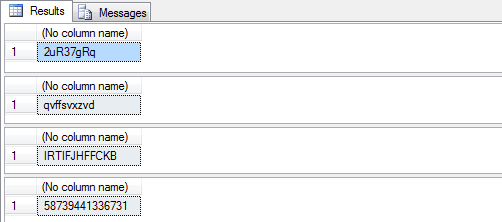
Here is sample output from the above commands:
Reference : http://www.mssqltips.com/sqlservertip/2534/sql-server-stored-procedure-to-generate-random-passwords/

Friday, December 26, 2014

How to make a copy of a existing database into new database

This feature is not available in Express version.

Right Click on database -> Task -> Copy Database.

It will open a wizard you have to follow, where you will have to select the source database and enter a new database name to copy whole database objects into the newer one.

Saturday, August 30, 2014

How to round to the nearest whole number in C# ?

I have Googled for it and found some interesting answers:

My problem was solved by simple using on Math.Ceiling

var wholeNumber = (int)Math.Ceiling(fractionalNumber);

And other interesting answers are :

Math.Ceiling
always rounds up (towards the ceiling)
Math.Floor
always rounds down (towards to floor)


References :

Friday, August 22, 2014

Microsoft Report Viewer Print Button not Working / Visible in IE 10 & 11


I had created report in on of my client website using "Microsoft Report Viewer Control" but a very known problem with Report Viewer is Printing is not possible in other browser instead of Internet Explorer.

Today I have faced a new problem that Print Button is not visible in IE 11 when Client updated their  Windows 8 to Windows 8.1. 


Then I started goggling and Finally I found  that it's happens because of Active X. And I followed these steps give below.

  •  Start Windows Internet Explorer.
  • On the Tools menu, click Internet Options.
  • On the Security tab, click Local Intranet, and then click Sites
  • Click Advanced.
  • Type the URL of your site in the Add this website to the zone box, and then click Add.  (in development mode it will be http://localhost)
  • Click Close to close the Local Intranet dialog box, and then click OK.
  • On the Security tab, click Custom Level.
  • Click Enable for each component that is listed under ActiveX controls and plugins.
  • Click OK to close the Internet Options dialog box.
  • Restart Internet Explorer
  • Try printing the report.

It's working fine now !!!.

Hope it will help you. :)

Friday, May 9, 2014

Maintain Scroll Position on Postback in ASP.NET

After a long time googling I have got a good solutions to maintain scroll position. See the post given below.

This article shows how to allows pages to automatically maintain the current scroll position across postbacks.
The MaintainScrollPositionOnPostback page directive attribute allows to do that.
This feature is useful for large pages where scrolling is necessary to view input controls down further on the page.
There are three ways of applying the property to a web page.

  1. You can set it programmatically 
    Page.MaintainScrollPositionOnPostBack = true;
  2. In the page declaration 
    <%@ Page MaintainScrollPositionOnPostback="true" %>
  3. Or in the web.configs <system.web> section. 
    <pages maintainScrollPositionOnPostBack="true" />
I have used 3 point & It's working absolutely fine.
 
This feature is an absolute must-have on large web pages built for postback scenarios.
A simple but very useful feature.

Smartnavigation = true  implemented the same feature in 1.1 framework SmartNavigation only had "issues" and it only worked in IE but the new MaintainScrollPositionOnPostback apparently works in most common browsers.


Monday, March 31, 2014

Generate a unique alphanumeric password using SQL


DECLARE @PwdLen SMALLINT,
@Chr TINYINT,
@Password VARCHAR(20)

-- Seed
SET @Chr = RAND(DATEPART(ms, GETDATE())) * 0
SET @Password = ''

SET @PwdLen = 1
WHILE @PwdLen < 8
BEGIN
SET @Chr = RAND() * 62
SET @Password = @Password + CHAR(
CASE WHEN @Chr < 10 THEN @Chr + 48 
WHEN @Chr BETWEEN 10 AND 35 THEN @Chr + 55 
ELSE @Chr + 61 
END)

SET @PwdLen = @PwdLen + 1
END

SELECT @Password [Password]

Wednesday, March 19, 2014

SQL statement which will give me all the days of a given month as individual rows

Hi friends,

I have searched a lot in Google and finally I found that its too easy to get the result. Check the query given below.

DECLARE @month    INT
DECLARE @year    INT
SET @month=2
SET @year = 2016

SELECT CAST(CAST(@year AS VARCHAR) + '-' + CAST(@Month AS VARCHAR) + '-01' AS DATETIME) + Number 'date'
FROM master..spt_values WHERE type = 'P'
AND
(CAST(CAST(@year AS VARCHAR) + '-' + CAST(@Month AS VARCHAR) + '-01' AS DATETIME) + Number )
<
DATEADD(mm,1,CAST(CAST(@year AS VARCHAR) + '-' + CAST(@Month AS VARCHAR) + '-01' AS DATETIME) )


Saturday, February 22, 2014

Last modified Tables & Stored Procedures details in Microsoft SQL Server

Let's find out the last modified Tables & Stored Procedures details in MSSQL by writting a simple Query.

For User Tables
SELECT * FROM sys.objects WHERE type='U' ORDER BY modify_date DESC

For Stored Procedures
SELECT * FROM sys.objects WHERE type='P' ORDER BY modify_date DESC

These Queries fetching records from system object table order by last modified date & time.  

Friday, February 21, 2014

Enable remote connections for SQL Server Express 2012

  1. Run SQL Server Configuration Manager.
  2. Go to SQL Server Network Configuration > Protocols for SQLEXPRESS.
  3. Make sure TCP/IP is enabled.
So far, so good, and entirely expected. But then:
  1. Right-click on TCP/IP and select Properties.
  2. Verify that, under IP2, the IP Address is set to the computer's IP address on the local subnet.
  3. Scroll down to IPAll.
  4. Make sure that TCP Dynamic Ports is blank. (Mine was set to some 5-digit port number.)
  5. Make sure that TCP Port is set to 1433. (Mine was blank.)
(Also, if you follow these steps, it's not necessary to enable SQL Server Browser, and you only need to allow port 1433, not 1434.)